Microsoft Word Templates: Basic to SMART Guide
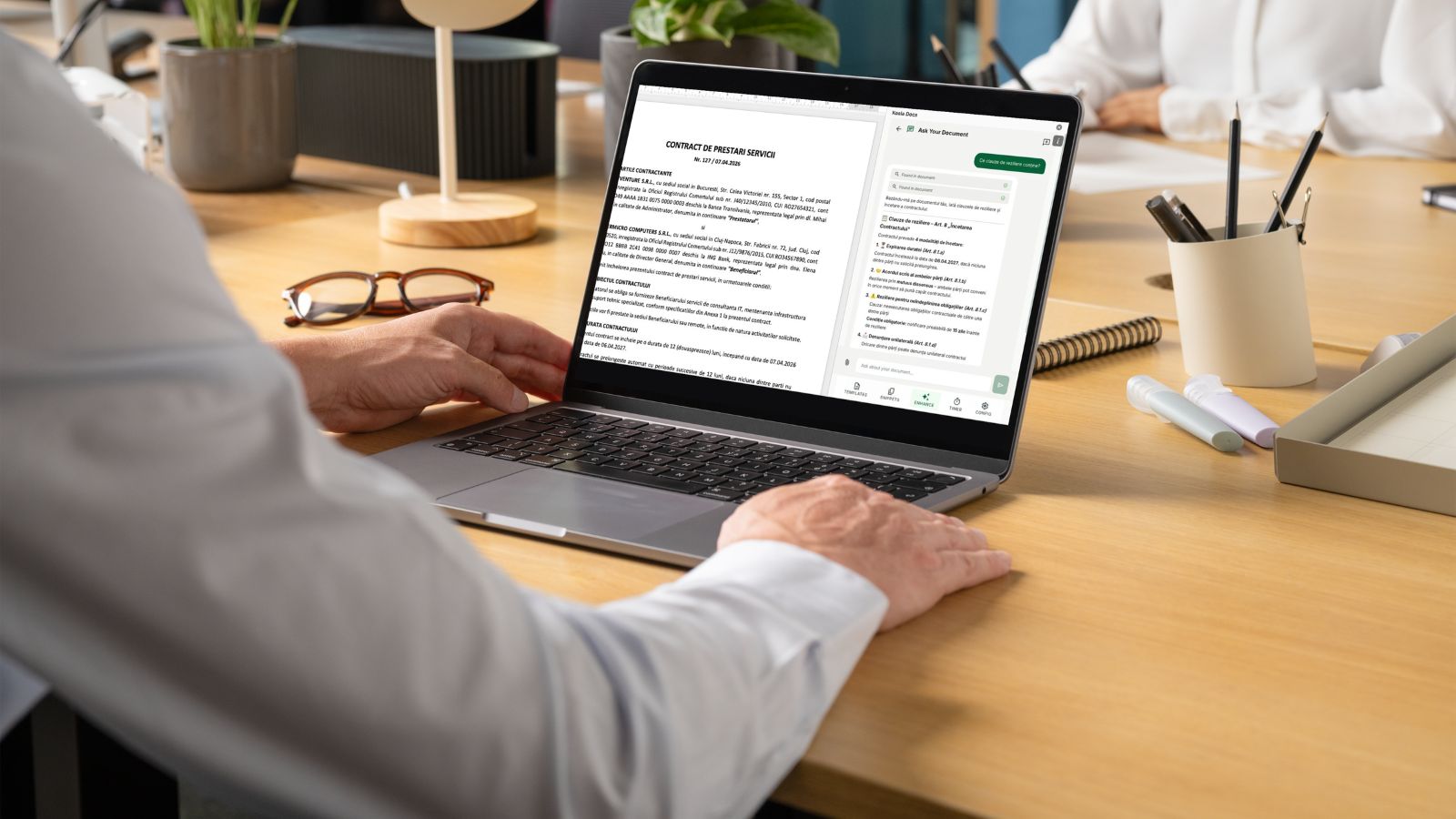
Microsoft Word remains the most widely used document creation tool in business. Regardless of industry, team size, or geography, Word is where contracts get written, proposals get assembled, and reports get formatted. Yet the vast majority of professionals use Word at a fraction of its potential. They create documents from scratch, copy and paste from old files, and spend hours on formatting that could be automated.
Templates are the foundation of document productivity. A well-designed template library transforms Word from a blank canvas into a structured system that produces consistent, professional documents in minutes. This guide walks you through every level of template sophistication, from the basics that every Word user should know to the SMART automation that eliminates manual work entirely.
Whether you are a solo freelancer, a legal professional, or a team leader building a company-wide document management system, this guide will help you get more from the tool you already use every day.
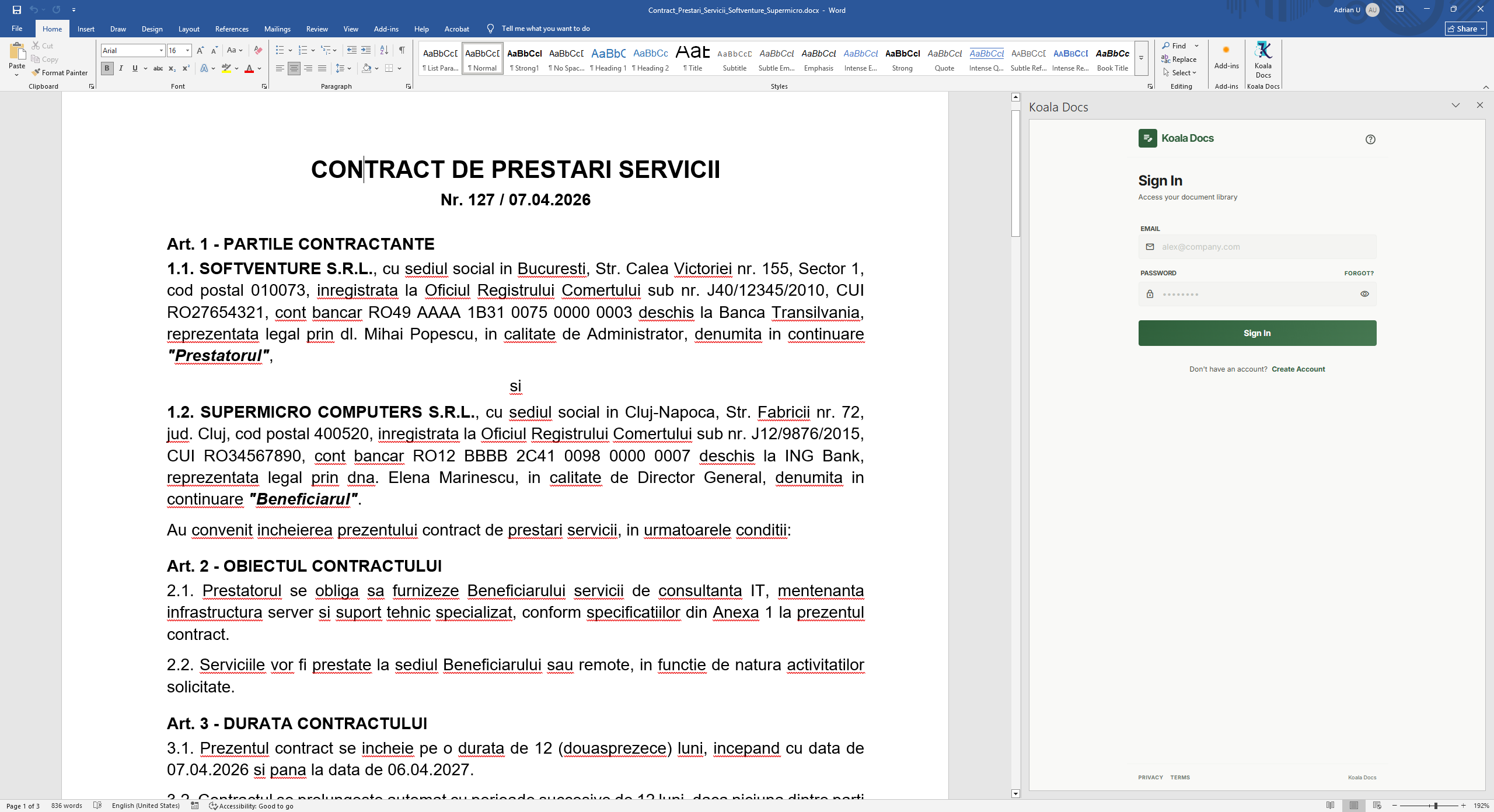
Why Templates Are the Foundation of Document Productivity
Before exploring the different levels of template complexity, it is worth understanding why templates matter so much. The statistics are compelling: teams that use standardized templates report significant reductions in document processing time and substantially fewer errors. That alone makes the case, but the benefits extend further.
Templates enforce consistency. Every document your team produces reflects your brand, follows your standards, and meets your compliance requirements. Without templates, quality depends on which individual creates the document, which version they copied from, and whether they remembered to update every detail.
Templates also preserve institutional knowledge. When your best proposal writer leaves the company, their document structures, phrasing, and formatting leave with them, unless those elements are captured in templates. A good template library is a knowledge asset that outlives any individual team member.
Finally, templates are the gateway to more advanced automation. Dynamic fields, snippets, and SMART documents all build on the template foundation. Investing time in your template library pays dividends at every level of sophistication.
Level 1: Basic Templates - Creating, Saving, and Organizing
Every Word user should master basic templates. These are pre-formatted documents that serve as starting points for new documents.
Creating a Basic Template
Start with a document that represents your ideal output. Format the headers, set the fonts and spacing, add your logo and footer, and include any standard text that appears in every version. Then save it as a Word Template (.dotx) rather than a regular document. This tells Word to create a new document based on the template each time, rather than opening the template itself for editing.
Organizing Your Templates
The default Word template location works for personal use, but teams need a better system. Organize templates into folders by document type (contracts, proposals, reports, letters) or by department (HR, Legal, Sales, Marketing). Name each template clearly, using a convention like “Contract_Service_Agreement_v3” so anyone can find what they need.
Common Mistakes at This Level
The most frequent mistake is saving templates as regular .docx files and then editing the original instead of creating a copy. This leads to template drift, where the master template gradually changes as people edit it directly. Always use the .dotx format or store templates in a managed system that prevents accidental modification.
Level 2: Dynamic Field Templates - Placeholders and Content Controls
Basic templates save formatting time, but they still require manually changing every variable element: names, dates, amounts, addresses, and other details. Dynamic field templates solve this by using placeholders that prompt the user to fill in specific information.
How Dynamic Fields Work
Word supports content controls such as plain text fields, date pickers, dropdown lists, and checkboxes. You place these controls in your template where variable data belongs. When someone creates a new document from the template, they fill in the fields, and the data appears in every location where that field is referenced.
For example, a service agreement template might include a “Client Name” field that appears in the header, the introductory paragraph, the signature block, and the footer. The user enters the name once, and it populates everywhere.
Practical Applications
- Contracts: Client name, effective date, service description, payment terms, and governing law as fillable fields
- Proposals: Prospect name, project scope, timeline, pricing tiers, and deliverables
- Reports: Reporting period, department name, key metrics, and reviewer name
- Letters: Recipient name, address, subject, and reference number
Dynamic fields eliminate the most common source of document errors: forgetting to update one instance of a name or date after copying from a previous document. They also speed up the creation process because the user focuses only on the variable data rather than scrolling through the entire document looking for things to change.
Level 3: Snippet Libraries - Reusable Clauses, Paragraphs, and Boilerplate
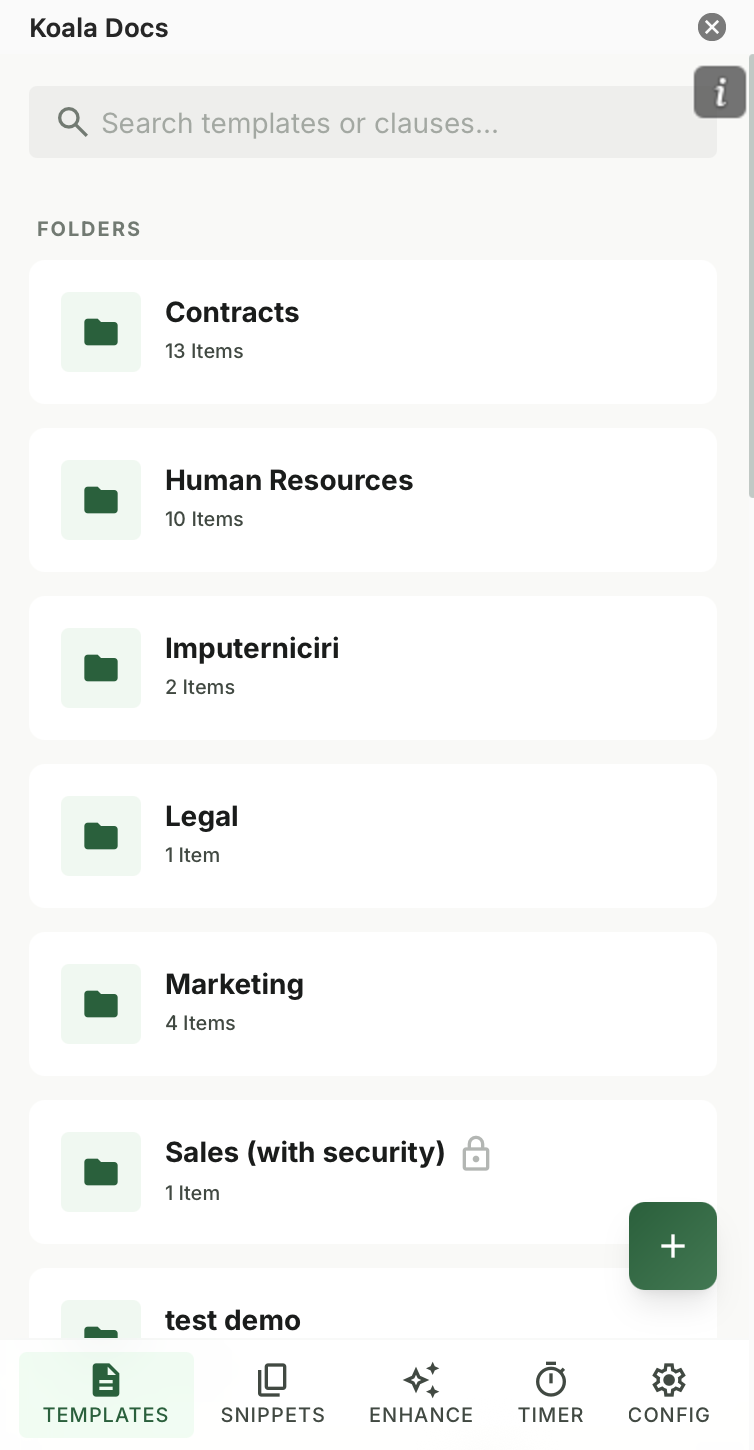
Templates handle complete documents, but many teams also need a way to manage reusable text fragments. A snippet library is a collection of pre-written, pre-formatted blocks of text that can be inserted into any document with a single action.
What Belongs in a Snippet Library
- Standard legal clauses (indemnification, limitation of liability, force majeure, confidentiality)
- Product descriptions and feature lists
- Company boilerplate (about us, certifications, awards)
- Frequently used paragraphs (project methodology, payment terms, delivery conditions)
- Signatures and approval blocks
- Disclaimer text and regulatory notices
The Power of Centralized Snippets
When a legal clause changes, you update it once in the snippet library, and every future document that uses that snippet automatically gets the latest version. This eliminates the problem of outdated language persisting in documents because someone copied from an old file. For regulated industries, this consistency is not just convenient; it is a compliance requirement.
How Koala Docs Handles Snippets
Koala Docs provides a snippet library accessible directly from the Word sidebar. You can organize snippets by category, search for them by keyword, and insert them with a single click. The snippet retains its formatting, so you do not need to adjust fonts, spacing, or styles after insertion. For teams, snippets can be shared across the organization, ensuring everyone has access to the same approved content.
Level 4: SMART Templates - Question-Based Automation That Fills Itself
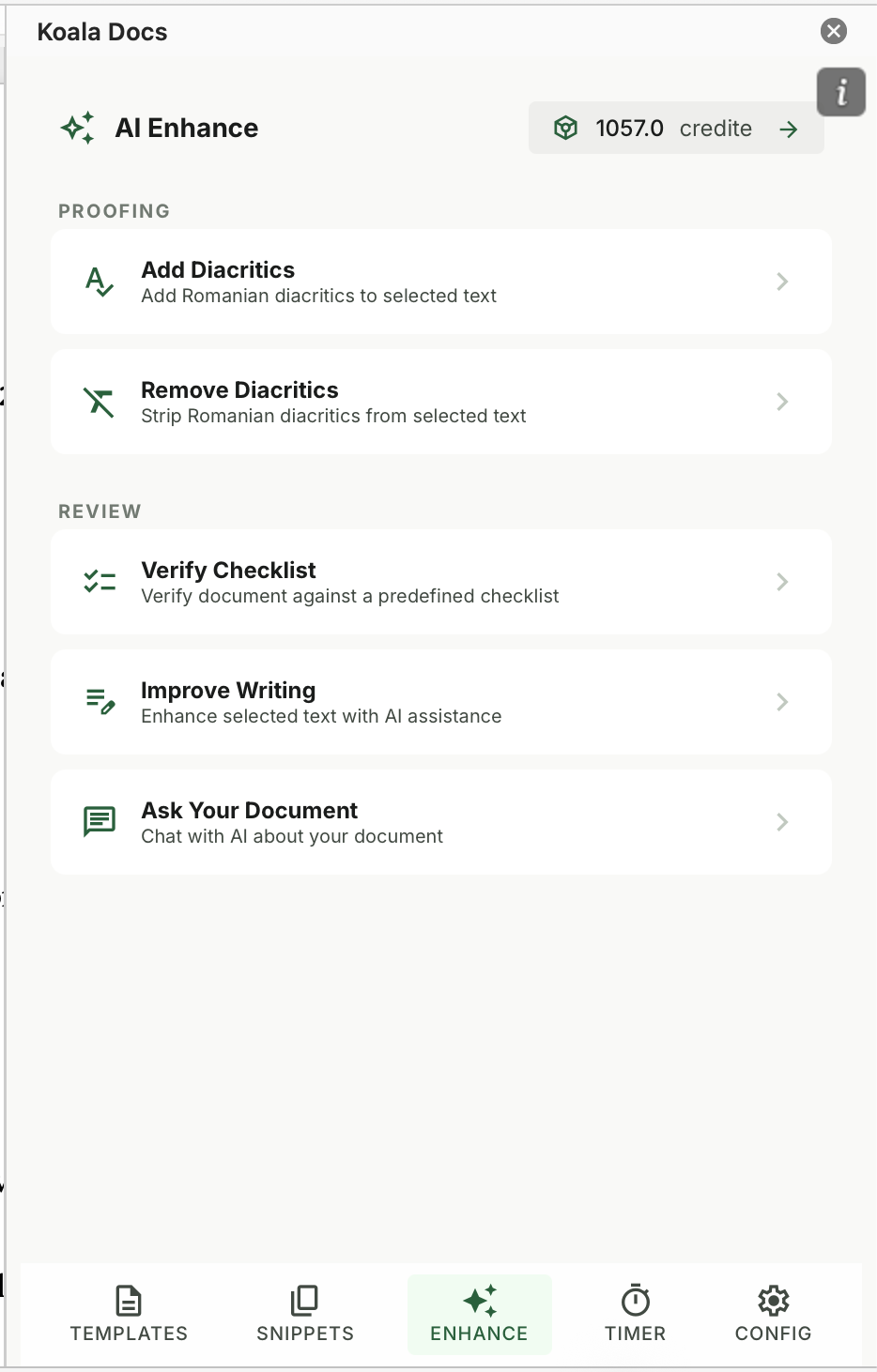
This is where templates evolve from time-savers into true automation tools. SMART documents use question-based logic to generate complete, customized documents without any manual editing.
How SMART Templates Work
Instead of opening a template and filling in fields, the user answers a series of questions. Based on the answers, the SMART template assembles the correct content, selects the appropriate clauses, adjusts the formatting, and produces a finished document.
For example, a SMART employment contract template might ask:
- What is the employee’s name and position?
- Is this a full-time or part-time role?
- What is the salary and payment frequency?
- Is there a probation period? If yes, how long?
- Which office location will the employee be based at?
Based on these answers, the template generates a complete employment contract with the correct terms, clauses, and formatting for that specific scenario. A full-time employee in the London office gets different benefit clauses than a part-time contractor in the Berlin office, and the SMART template handles this automatically.
Why SMART Templates Change the Game
The difference between dynamic fields and SMART templates is conditional logic. Dynamic fields insert variable data into a fixed structure. SMART templates change the structure itself based on the data. This means:
- Irrelevant sections are automatically excluded
- Conditional clauses appear only when applicable
- Document length adjusts based on the scenario
- Complex documents with many variations become trivial to produce
For organizations that produce documents with multiple possible configurations, such as contracts with different terms for different regions, or proposals with tiered pricing, SMART templates eliminate hours of manual assembly work.
Level 5: Team Templates - Sharing, Versioning, and Multi-Device Sync
Individual templates improve personal productivity. Team templates transform organizational efficiency. The final level of template sophistication involves sharing your template library across your entire team or company, with proper version control and access from any device.
The Problem with Unmanaged Team Templates
Without a centralized system, teams typically share templates through email, shared drives, or messaging tools. This creates predictable problems:
- Multiple versions of the same template exist simultaneously
- No one knows which version is current
- Changes made by one person do not reach the rest of the team
- New team members struggle to find the right templates
- Templates saved locally are lost when someone changes computers
What Team Template Management Looks Like
A proper team template system provides a single source of truth. All templates, snippets, and SMART documents live in one shared library. When a template is updated, every team member sees the latest version automatically. New team members get immediate access to the full library. And the system works across devices, so templates are available whether someone is working from the office, home, or a client site.
Koala Docs provides exactly this capability, with team sharing built into the Word sidebar. Administrators can manage the template library, control who can edit templates versus who can only use them, and ensure that compliance-critical templates cannot be modified without approval. Templates sync across devices automatically, and the entire library is accessible from the familiar Word interface.
Building a Team Library from Scratch
If you are starting from zero, the process for building a team template library follows these steps:
- Audit existing documents. Identify every document your team produces regularly. For a detailed walkthrough, see our guide on building a company-wide document management system.
- Prioritize by volume and impact. Start with the documents that are produced most frequently or that have the highest impact when errors occur.
- Create master templates. Build the definitive version of each template, incorporating the best elements from the various versions currently in use.
- Add dynamic fields and snippets. Convert static text to dynamic fields where applicable and create snippet entries for reusable content blocks.
- Implement SMART logic. For complex documents with conditional content, add question-based automation.
- Share and train. Deploy the library to the team and provide guidance on how to use each template.
- Iterate based on feedback. Templates are living documents. Collect feedback, track usage, and refine continuously.
Organizing Your Template Library: Structure That Scales
As your template library grows, organization becomes critical. There are three common approaches to organizing templates, and the best choice depends on your organization’s structure.
By Department Organize templates into folders for HR, Legal, Sales, Marketing, Finance, and Operations. This works well in organizations where departments have distinct document needs with little overlap.
By Document Type Organize by contracts, proposals, reports, letters, forms, and presentations. This works well when multiple departments use similar document structures but with different content.
By Client or Project For agencies and professional services firms, organizing by client or project ensures that all related templates are grouped together. This is especially useful when different clients have different requirements or branding.
Most organizations benefit from a hybrid approach, using a primary organization method (typically by department or document type) with tags or secondary categories for cross-referencing.
Common Template Mistakes and How to Avoid Them
After working with thousands of teams, certain template mistakes appear consistently. Here are the most common ones and their solutions.
Mistake 1: Over-engineering templates. Templates that try to handle every possible scenario become unwieldy and confusing. Better to have three focused templates than one that tries to be everything.
Mistake 2: Ignoring formatting standards. Templates that use inconsistent fonts, spacing, or heading styles undermine the professional appearance they are meant to ensure. Define formatting standards and apply them consistently.
Mistake 3: Failing to update templates. Legal language changes, pricing changes, contact information changes. Templates that are not regularly reviewed become liabilities rather than assets. Schedule quarterly template reviews.
Mistake 4: Not training the team. A template library is only valuable if people use it. Invest time in showing team members how to find and use templates, and explain the benefits in terms that matter to them.
Mistake 5: Skipping the snippet library. Many teams create templates but neglect to build a corresponding snippet library. Snippets are the complement to templates, and together they cover both complete documents and reusable fragments.
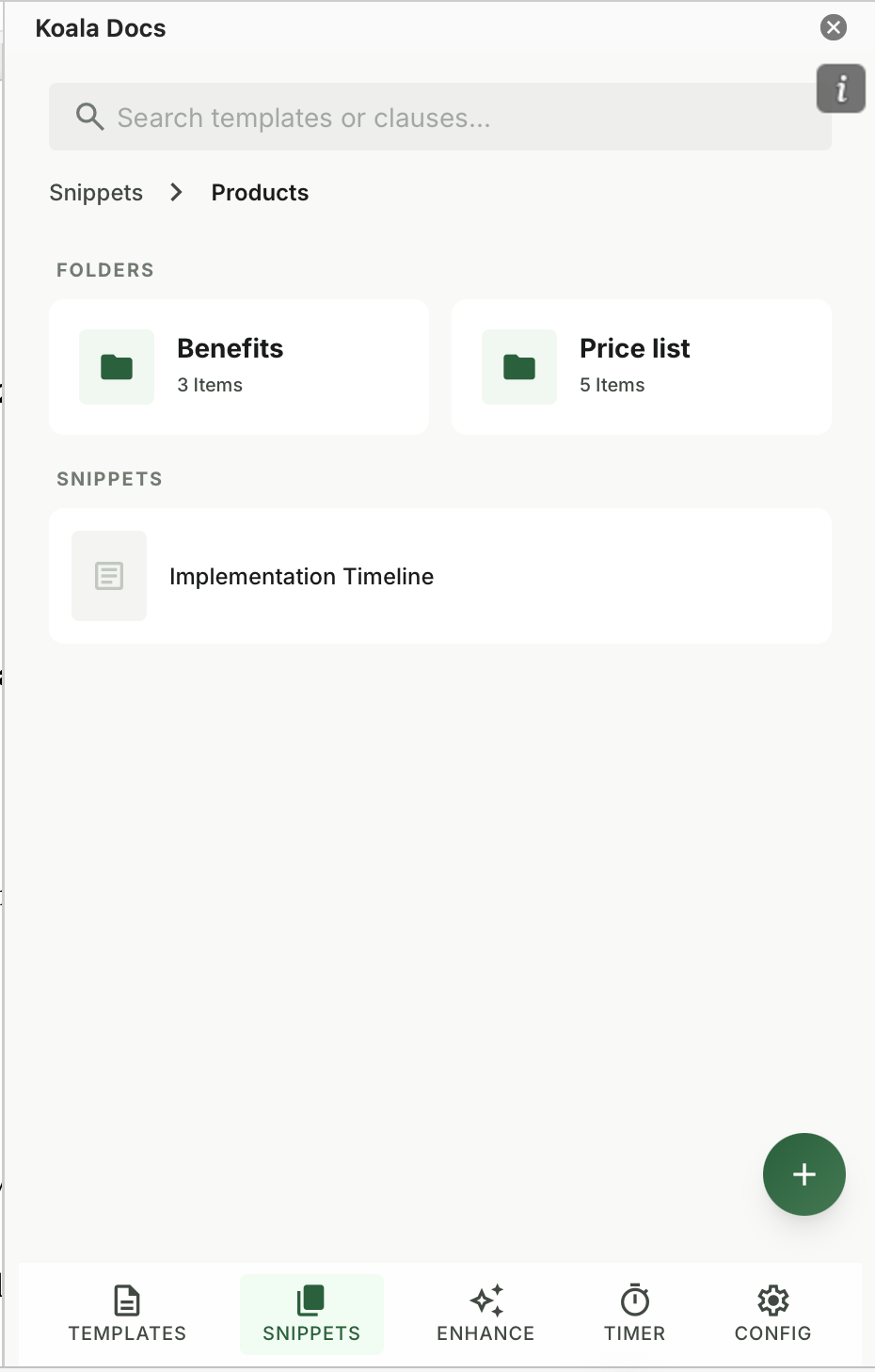
Tool Comparison: Word Built-In Features vs. Koala Docs
Word provides basic template functionality out of the box, but it has limitations that dedicated tools address.
| Feature | Word Built-In | Koala Docs |
|---|---|---|
| Basic templates (.dotx) | Yes | Yes |
| Dynamic content controls | Yes (technical setup) | Yes (simplified interface) |
| Snippet library | Limited (AutoText/Quick Parts) | Full-featured, organized, searchable |
| SMART question-based automation | No | Yes |
| Team sharing and sync | Via SharePoint (complex) | Built-in, one-click sharing |
| AI translation | No | 100+ languages |
| Time tracking per document | No | Built-in timer |
| Version management | Manual | Automatic |
| Works inside Word | N/A | Yes, via sidebar |
For individual users with simple needs, Word’s built-in features may suffice. For anyone who produces documents regularly, works on a team, or needs advanced features like SMART automation and translation, a dedicated tool like Koala Docs delivers significantly more value.
Frequently Asked Questions
How many templates does a typical team need?
The number varies by industry and team size, but most organizations find that 15 to 30 templates cover 80% or more of their document needs. Start by identifying your top 10 most frequently produced documents and create templates for those first. Expand as you identify additional recurring document types. The key is not to create templates for every possible document but to focus on the ones that are produced often enough that the time savings compound meaningfully.
Can I convert my existing Word documents into templates?
Absolutely. In fact, starting from existing documents is the fastest way to build a template library. Take your best example of each document type, remove the specific details, replace variable content with placeholders or dynamic fields, and save it as a template. With Koala Docs, you can enhance these templates further by adding snippet references and SMART question logic without starting from scratch.
What is the difference between a template, a snippet, and a SMART document?
A template is a complete document framework with predefined structure, formatting, and standard content. You create a new document from a template and fill in the details. A snippet is a reusable fragment of text, such as a clause, paragraph, or disclaimer, that can be inserted into any document. A SMART document is an intelligent template that asks questions and assembles the correct content automatically based on the answers. Templates provide the structure, snippets provide the content building blocks, and SMART documents provide the automation logic. Together, they form a complete document productivity system.
How do I ensure template consistency across a large team?
Template consistency requires three things: a centralized repository, clear governance, and the right tools. Store all templates in a single shared location that everyone accesses. Designate template owners who are responsible for maintaining and updating each template. Use a tool like Koala Docs that supports team sharing with role-based permissions, so authorized users can edit templates while others can only use them. Finally, conduct regular reviews to ensure templates remain current and consistent with organizational standards.
Ready to build your template library? Start with Koala Docs and create templates, snippets, and SMART documents directly inside Microsoft Word. Share them with your team, translate into 100+ languages, and track time per document. All from a single sidebar. Explore features | View pricing | See use cases
Ready to automate your documents?
Try Koala Docs free — install in under 60 seconds.
Get Started Free →