Document Management System in Word for Teams
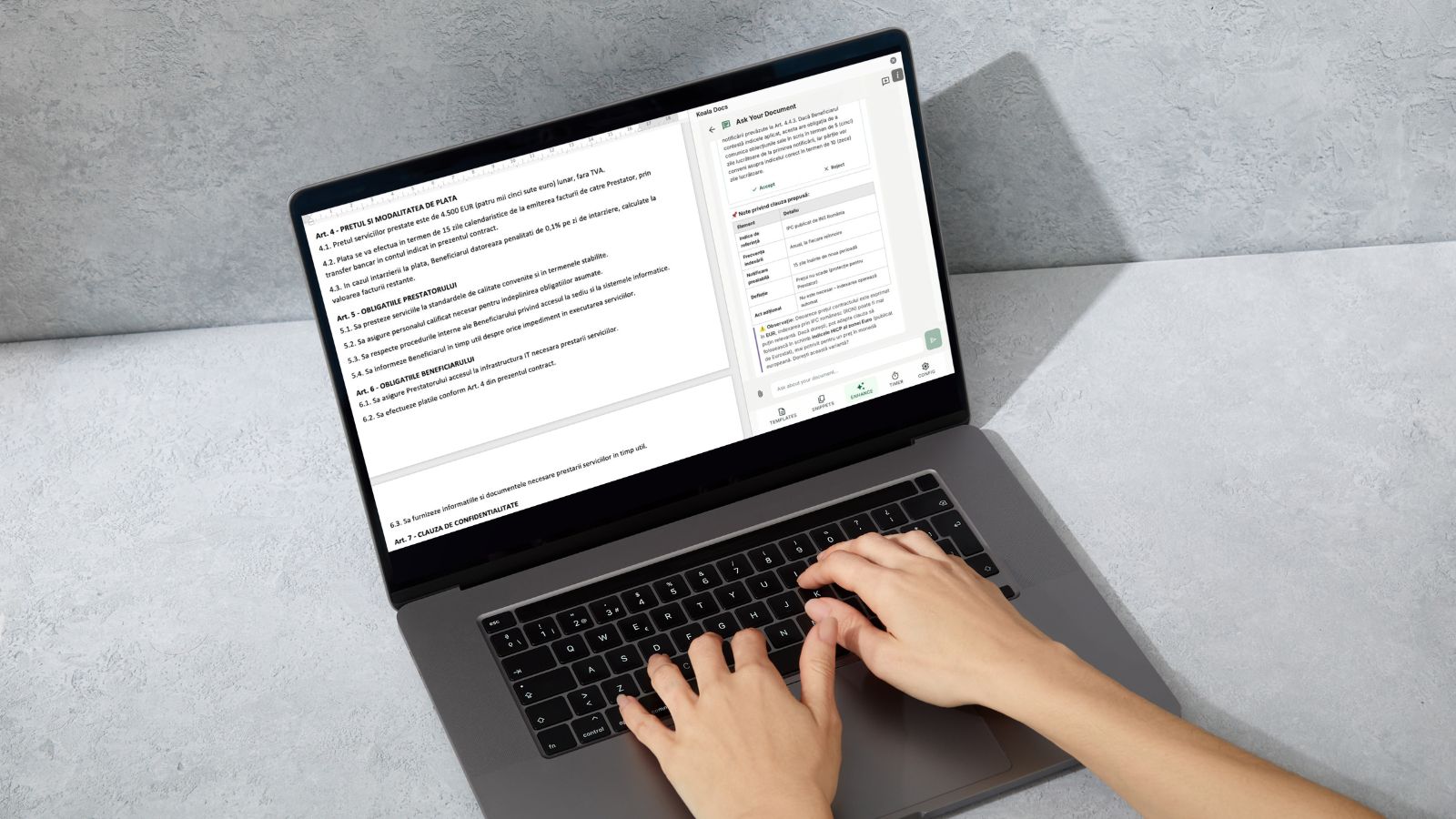
Every company produces repetitive documents. Contracts, proposals, reports, letters, invoices, onboarding packets, compliance filings, and internal memos flow through organizations on a daily basis. Yet remarkably few companies manage these documents in any systematic way. Instead, files live on individual desktops, in personal OneDrive folders, scattered across shared drives, buried in email threads, and saved under inconsistent names that make them impossible to find.
The result is predictable: duplicated effort, inconsistent quality, outdated templates circulating alongside current ones, and a constant low-level inefficiency that drains time from every team. When a new employee joins, they spend their first weeks hunting for the right document versions. When a key team member leaves, their carefully organized document files leave with them.
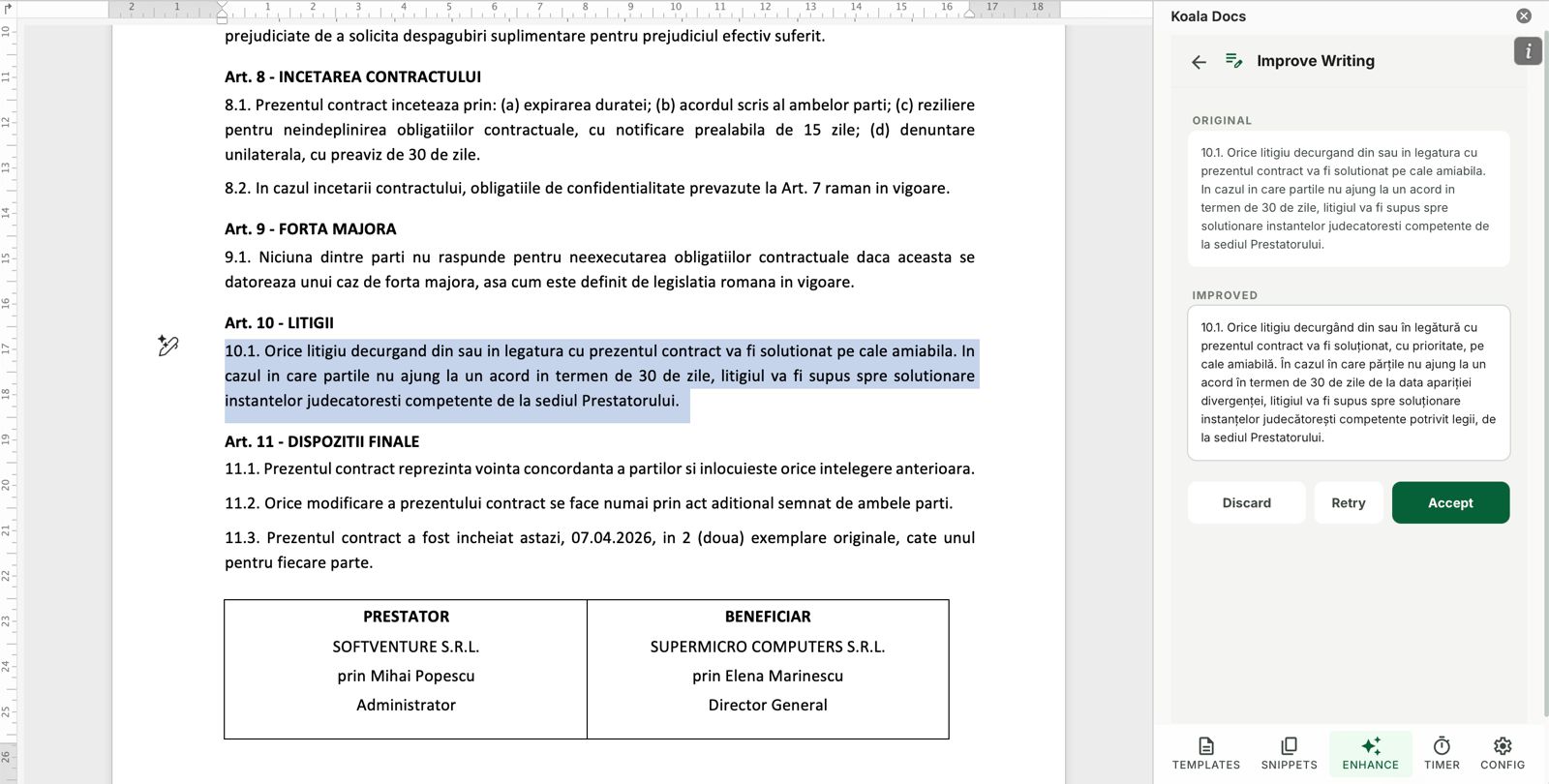
Building a company-wide document management system solves these problems, and the most effective approach builds that system inside the tool everyone already uses: Microsoft Word. This guide provides a six-step framework for creating a centralized, organized, and automated document library that every team member can access directly from the Word sidebar.
The Problem: Document Chaos Is Universal
Before outlining the solution, it is worth acknowledging the scale of the problem. Here is what document management looks like in most organizations:
HR Department: The HR director has their version of the offer letter template on their laptop. The recruiter has a slightly different version they got from a colleague who left last year. Neither version reflects the updated probation clause that Legal approved three months ago. Every new hire gets a slightly different offer letter, and nobody notices until an employment dispute reveals the inconsistency.
Legal Team: Attorneys maintain personal collections of contract templates, clause libraries, and standard agreements. Each attorney’s collection evolved from the templates they received when they joined the firm, modified over years of practice. The firm nominally has standard templates on a shared drive, but nobody uses them because they are outdated.
Sales Organization: Sales representatives create proposals by copying their most recent similar proposal and modifying it. Pricing, case studies, and service descriptions vary from rep to rep. The marketing team produces branded proposal templates that sales never uses because they are too rigid to customize.
Operations: Monthly reports are created by copying last month’s report, changing the date, and updating the numbers. The formatting has drifted over the past two years because each month’s creator makes minor adjustments. Three different report formats exist across the regional offices.
This pattern repeats in organizations of every size, from ten-person startups to multinational corporations. The solution is not another file storage system. The solution is a structured, accessible document library that lives where people work: inside Microsoft Word.
The Vision: A Centralized Library Accessible from Word
Imagine opening Word and having immediate access to every template, snippet, and automated document your company has approved. No searching through drives. No emailing colleagues to ask for the latest version. No wondering whether the template you found is current.
This is what a well-implemented document management system looks like:
- Every template is organized by department and document type, accessible from a sidebar panel
- Every snippet (standard clauses, boilerplate paragraphs, product descriptions) is in a searchable library
- Every SMART document is available for question-based generation of complex documents
- Every update to a template or snippet is immediately available to all team members
- Every document can be translated into 100+ languages without leaving Word
- Every minute spent on document creation can be tracked for billing or productivity analysis
This is not a theoretical ideal. It is what organizations build when they follow the six steps below using Koala Docs as their document management platform.
Step 1: Audit Your Existing Documents
The first step is understanding what you already have. Conduct a document audit across every department to identify:
What documents does each team produce regularly? List every recurring document type by department. Common categories include contracts, proposals, reports, letters, forms, policies, and communications. Be specific. Do not just list “contracts” but break it down: service agreements, NDAs, employment contracts, vendor agreements, partnership agreements.
How often is each document type produced? Frequency determines priority. A contract produced 50 times per month has a much higher automation ROI than a report produced quarterly. Focus on high-frequency documents first.
Who creates each document, and how? Understand the current workflow. Where do people find their starting point? How long does creation take? What errors are common? This information reveals the biggest opportunities for improvement.
Where do documents currently live? Map the storage landscape. Personal drives, shared folders, email attachments, SharePoint libraries, cloud storage. Knowing where everything is helps ensure nothing is lost during the transition to a centralized system.
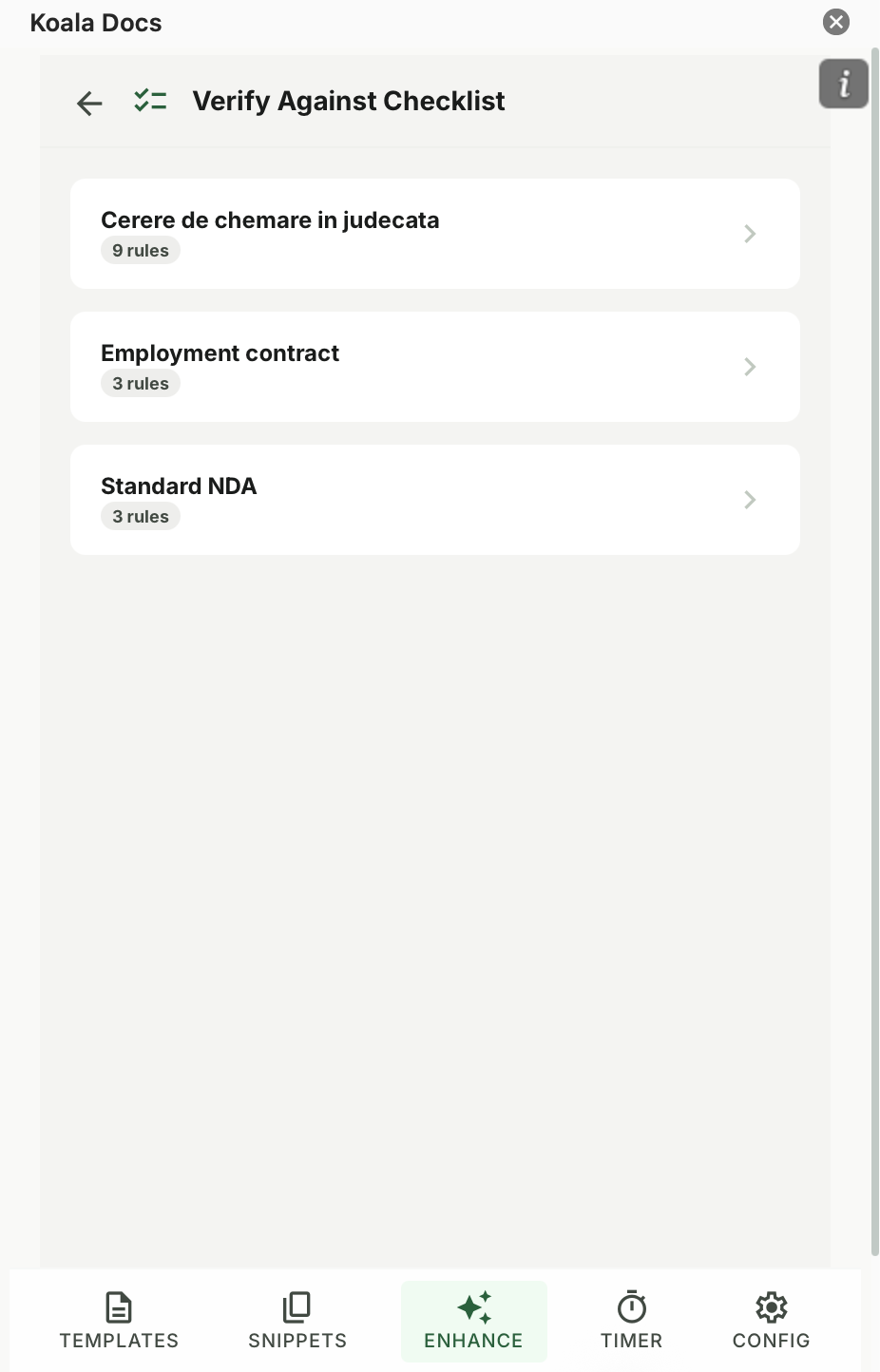
Which documents have the highest impact when errors occur? A typo in an internal memo is embarrassing. An error in a client contract is expensive. Prioritize accuracy-critical documents for the most rigorous template design.
This audit typically takes one to two weeks for a mid-size organization. The output is a complete inventory of document types, frequencies, current workflows, and priorities.
Step 2: Create Standardized Templates by Department
With the audit complete, begin creating standardized templates for each high-priority document type. The goal is to produce the definitive version of each template that incorporates the best elements from the various versions currently in use.
HR Templates
- Offer letters (by employment type: full-time, part-time, contract)
- Employment agreements (by jurisdiction and role level)
- Performance review forms
- Employee handbook sections
- Termination and exit documentation
- Benefits enrollment forms
Legal Templates
- Service agreements (by service type)
- Non-disclosure agreements (unilateral and bilateral)
- Terms of service and privacy policies
- Demand letters and formal correspondence
- Corporate governance documents
Sales Templates
- Proposals (by service line and client size)
- Quotes and pricing sheets
- Client presentations
- Case study formats
- Follow-up and engagement letters
Marketing Templates
- Press releases
- Blog post outlines
- Social media content calendars
- Event materials
- Brand guidelines documents
Finance Templates
- Invoice cover letters
- Financial report formats
- Budget proposals
- Expense report summaries
- Audit documentation
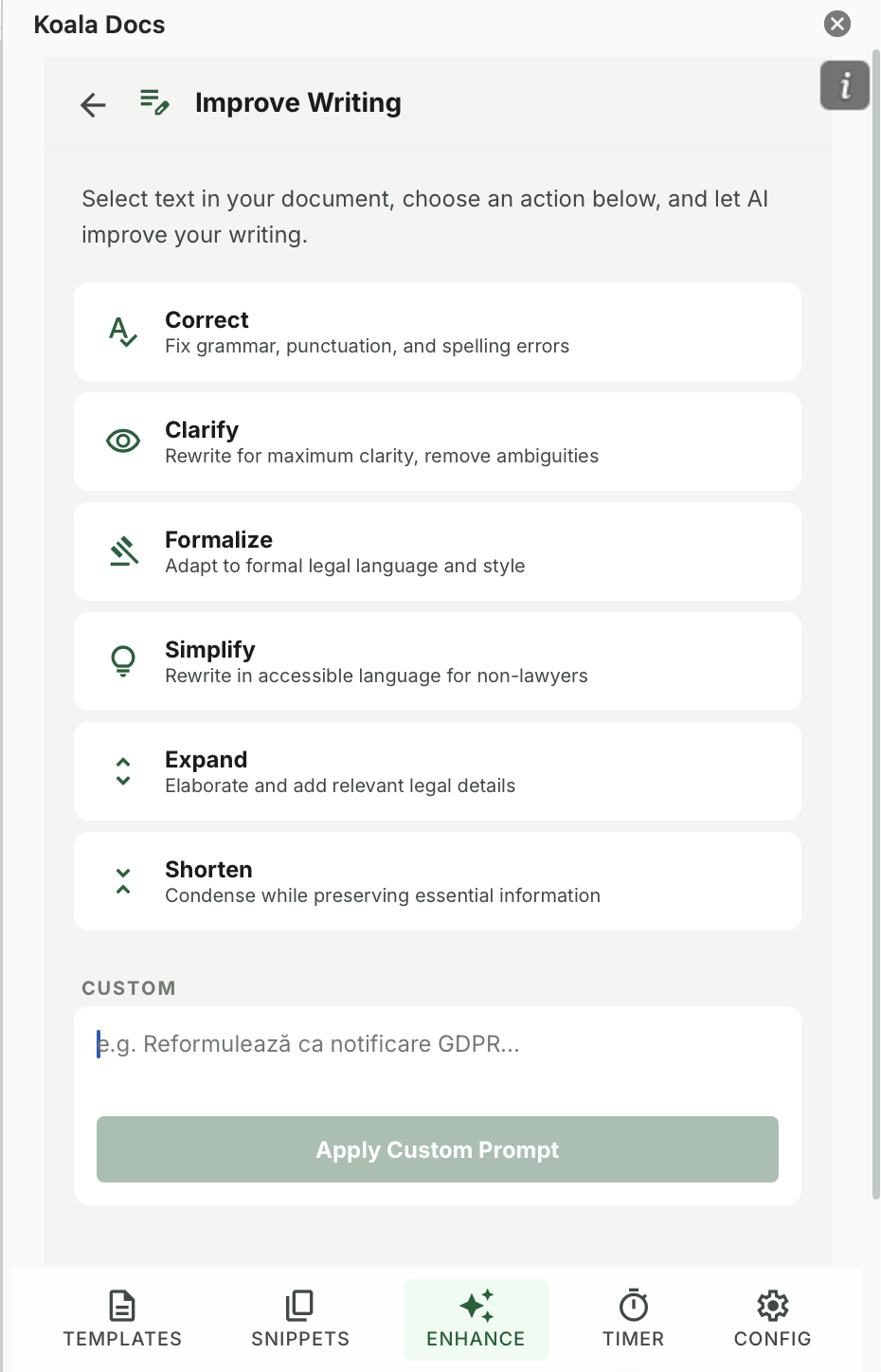
For each template, follow the principles outlined in our ultimate guide to Word templates. Define the structure, set up consistent formatting, include all standard content, and add dynamic fields for variable data.
Step 3: Organize with Snippets - Reusable Fragments Across Templates
Templates handle complete documents, but much of the content within those documents is shared across multiple template types. Standard legal clauses, company descriptions, product feature lists, regulatory disclaimers, and boilerplate paragraphs appear in contracts, proposals, reports, and correspondence alike.
A snippet library captures these reusable fragments and makes them available for insertion into any document. The critical advantage of snippets over copy-paste is centralized maintenance: update a snippet once, and every future document that uses it reflects the change.
Building Your Snippet Library
- Review your newly created templates and identify every text block that appears in more than one template
- Extract each shared block into a separate snippet with a clear, searchable name
- Organize snippets by category: legal clauses, company boilerplate, product descriptions, regulatory text
- For each snippet, designate an owner responsible for keeping it current
- Replace the duplicated content in your templates with references to the corresponding snippets
Common Snippet Categories
- Legal clauses: indemnification, limitation of liability, force majeure, governing law, dispute resolution, confidentiality, intellectual property assignment
- Company information: about us, certifications, awards, team bios, office locations
- Product content: feature descriptions, pricing tiers, service level terms, support options
- Regulatory text: GDPR notices, industry-specific disclaimers, accessibility statements
- Standard paragraphs: payment terms, delivery conditions, warranty statements, project methodology descriptions
A mature snippet library typically contains 50 to 200 entries, depending on the organization’s complexity. The investment in building it pays dividends immediately in consistency and pays dividends repeatedly in maintenance efficiency.
Step 4: Implement SMART Documents for Complex Documents
Some documents are too variable for static templates, even with dynamic fields and snippets. Employment contracts that differ by country, role type, and compensation model. Proposals that assemble different service packages, pricing tiers, and case studies based on the prospect. Compliance reports that include different sections based on the applicable regulations.
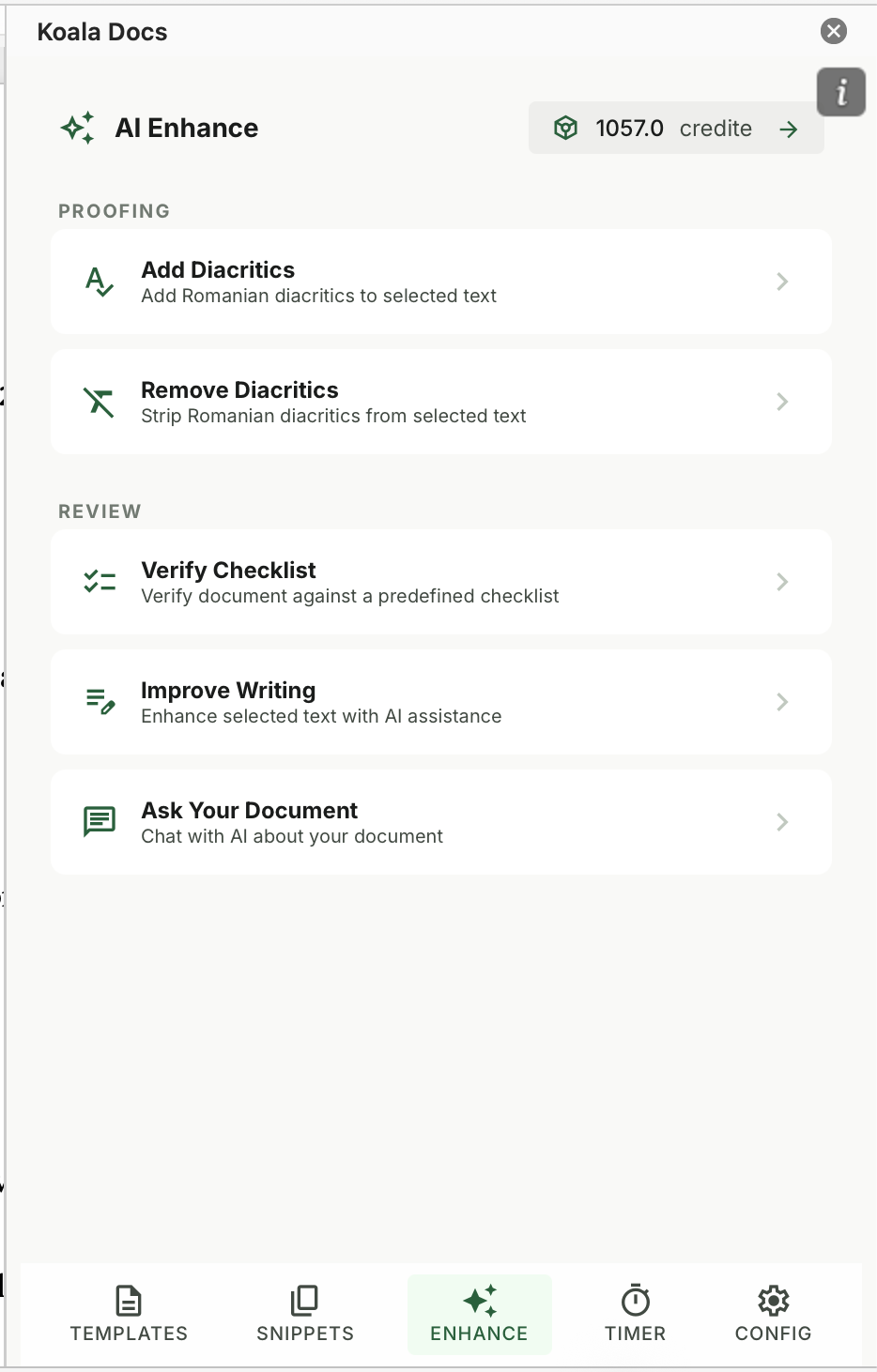
For these complex documents, SMART document automation is the solution. SMART documents use a question-based interface to generate customized output. The user answers a series of questions, and the system assembles the correct content, selects the appropriate clauses, and produces a complete document.
Which Documents to Make SMART
Focus on documents that have:
- Multiple possible configurations (different clause combinations, optional sections)
- High volume (produced frequently enough to justify the setup investment)
- High error cost (mistakes are expensive, embarrassing, or legally risky)
- Multiple creators (several people produce the same document type, and consistency matters)
Employment contracts, NDAs, service agreements, and client proposals are the most common candidates. For a detailed walkthrough of SMART document setup, see our dedicated guide on question-based document automation.
Step 5: Add AI Translation for International Teams
Organizations operating across borders need documents in multiple languages. Maintaining separate template libraries for each language is impractical and error-prone. Changes to the English version must be manually replicated in every translated version, creating a synchronization nightmare.
AI translation integrated into the document workflow solves this problem. Maintain your master templates, snippets, and SMART documents in your primary language. When a translated version is needed, generate it with a single click.
Practical Translation Workflow for Teams
- Create and approve all templates in the primary language
- When a document is needed in another language, generate it from the template
- Translate the generated document using the AI translation feature
- For customer-facing documents, have a bilingual team member review the translation
- For internal documents, use the AI translation directly
Koala Docs supports AI translation in over 100 languages directly from the Word sidebar. For a comprehensive look at how AI translation fits into business document workflows, read our complete guide to AI translation for business documents.
Step 6: Enable Time Tracking for Billable Work
The final component of a complete document management system is time tracking. For organizations that bill for document creation, whether law firms, consulting agencies, accounting firms, or freelancers, tracking time per document transforms billing accuracy.
But time tracking also benefits non-billing organizations. It provides data on how long different document types take to create, identifies bottlenecks, supports capacity planning, and measures the impact of your automation investments.
What Document-Level Time Tracking Reveals
- How much time each department spends on document creation
- Which document types consume the most time and where automation could help
- How individual productivity varies across document types
- Whether your templates and SMART documents are actually saving time (and how much)
- Seasonal patterns in document workload that affect staffing and planning
Koala Docs includes a built-in timer that tracks time per document directly from the Word sidebar. The data feeds into daily, weekly, and monthly summaries that support billing, reporting, and operational analysis.
ROI Calculation: Making the Business Case
Implementing a company-wide document management system requires investment in audit time, template creation, team training, and tool subscriptions. Here is how to calculate the return.
Step 1: Quantify Current Document Time Multiply the number of documents produced per month by the average creation time per document. For a team of 20 professionals producing an average of 15 documents per person per month at 45 minutes each, that is 225 hours of document work monthly.
Step 2: Estimate Time Savings Organizations that implement template-based document management typically reduce document creation time by 50% to 80%. Using a conservative 60% reduction, the team saves 135 hours per month.
Step 3: Assign a Cost to Saved Time At an average cost of EUR 50 per hour (salary plus overhead), 135 saved hours represents EUR 6,750 per month or EUR 81,000 per year.
Step 4: Account for Error Reduction Reduce the cost of document errors, revision cycles, and compliance failures. For most organizations, this adds another 10% to 20% to the total savings.
Step 5: Subtract Implementation Costs Factor in the time spent on audit, template creation, and training (typically 40 to 80 hours for a mid-size team), plus the tool subscription. Koala Docs at EUR 9.95 per user per month for 20 users is EUR 199 per month or EUR 2,388 per year.
Result: Net annual savings of approximately EUR 78,600 for a 20-person team. The ROI exceeds 3,200% when measured against the tool subscription cost alone.
Even for smaller teams, the math is compelling. A five-person team with the same document volume and a more modest 40% time reduction saves approximately EUR 16,200 per year against a tool cost of EUR 597, delivering a return of over 2,700%.
Implementation Timeline
A realistic timeline for implementing a company-wide document management system looks like this:
Weeks 1-2: Document Audit Survey departments, inventory document types, map current workflows, and prioritize by frequency and impact.
Weeks 3-4: Template Creation Phase 1 Build standardized templates for the top 10 highest-priority document types. Add dynamic fields and basic snippets.
Weeks 5-6: Team Onboarding Deploy the initial template library. Train team members on finding, using, and providing feedback on templates. Begin tracking adoption and time savings.
Weeks 7-8: Template Creation Phase 2 Build additional templates, expand the snippet library, and create the first SMART documents based on Phase 1 feedback.
Weeks 9-10: Advanced Features Implement AI translation workflows for international teams. Enable time tracking for billable work. Refine SMART documents based on initial usage.
Ongoing: Iteration and Expansion Review templates quarterly. Add new document types as needs emerge. Refine SMART logic based on user feedback. Monitor time tracking data to identify further optimization opportunities.
Frequently Asked Questions
How do I get buy-in from team members who are resistant to changing their document workflow?
Start with a pilot group of enthusiastic early adopters. Let them use the new system for two to four weeks and document their time savings. Then use their results and testimonials to demonstrate the benefits to the broader team. Focus on how the system makes their work easier rather than on top-down mandates. Most resistance dissolves when people see a colleague produce a professional document in two minutes that previously took them 45 minutes. Also, allow a transition period where both old and new methods are available. Forcing an abrupt switch increases resistance unnecessarily.
What is the minimum team size that benefits from a centralized document management system?
There is no minimum. Even a single professional benefits from organized templates, a snippet library, and SMART documents. However, the team-specific benefits such as consistency, shared access, and centralized maintenance become significant at around three to five team members. At that point, the risk of version confusion, inconsistent output, and duplicated effort is high enough that a centralized system delivers clear value. For larger teams of 20 or more, a centralized system is not a nice-to-have but an operational necessity.
How do I handle documents that need approval before being used as templates?
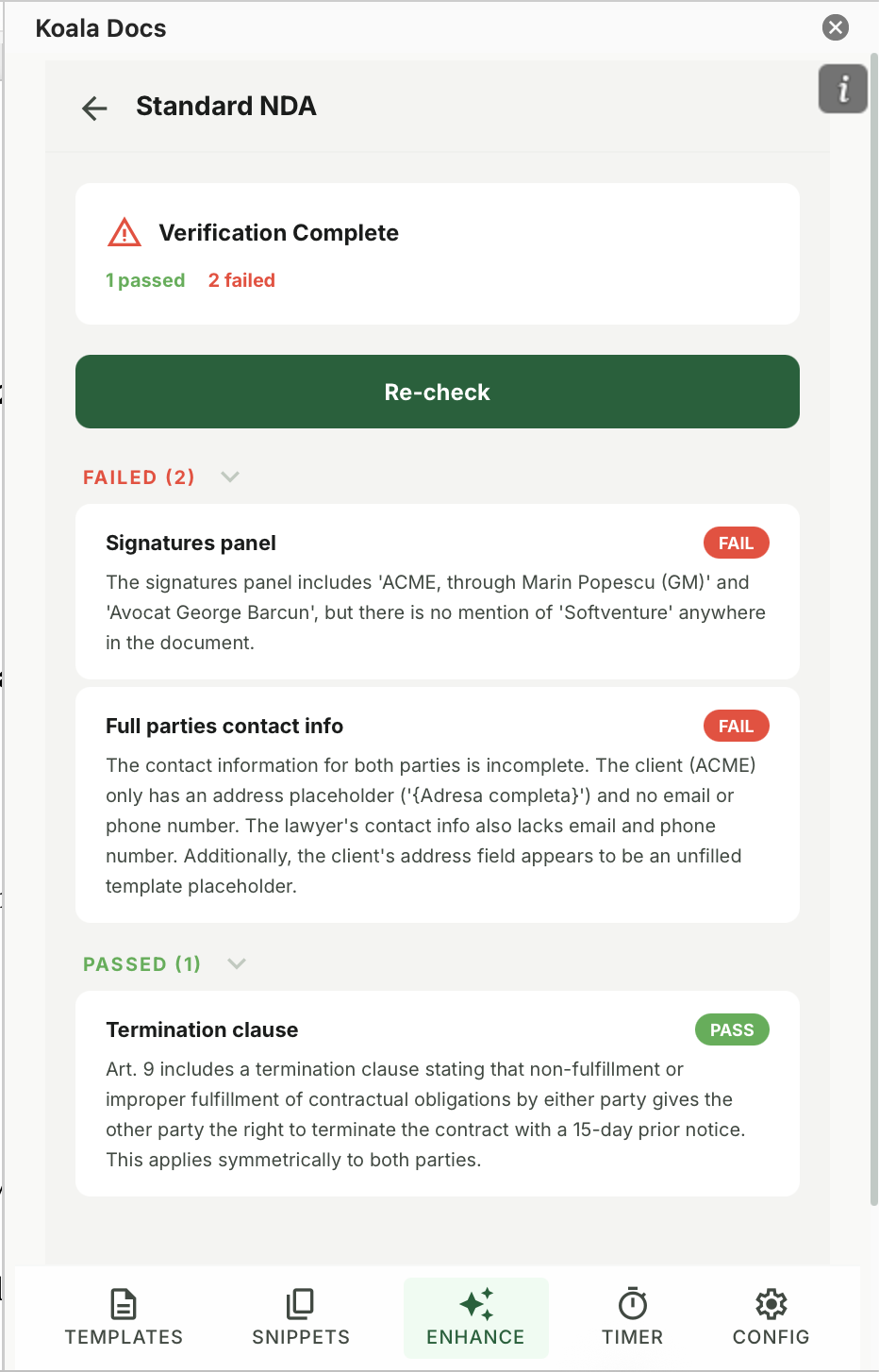
Establish a template governance process. Designate template owners for each department or document type. Define a review and approval workflow: template owners create or update templates, designated approvers (such as Legal for contract templates or Compliance for regulatory documents) review and sign off, and only then are templates published to the team library. Koala Docs supports role-based permissions that allow designated users to edit templates while others can only use them, ensuring that approved templates remain unchanged until the next authorized update.
Ready to build your document management system? Start with Koala Docs and give your team a centralized library of templates, snippets, and SMART documents inside Microsoft Word. Add AI translation for 100+ languages and built-in time tracking to complete the picture. Explore features | View pricing | See use cases
Ready to automate your documents?
Try Koala Docs free — install in under 60 seconds.
Get Started Free →